Video
Add Node → Generate → Video
This card makes clips — from a text prompt on its own, from a first and last frame, from a set of reference pictures, or from a clip you feed it. It runs in the cloud, through your provider, or on this Mac with LTX.
What’s on the card
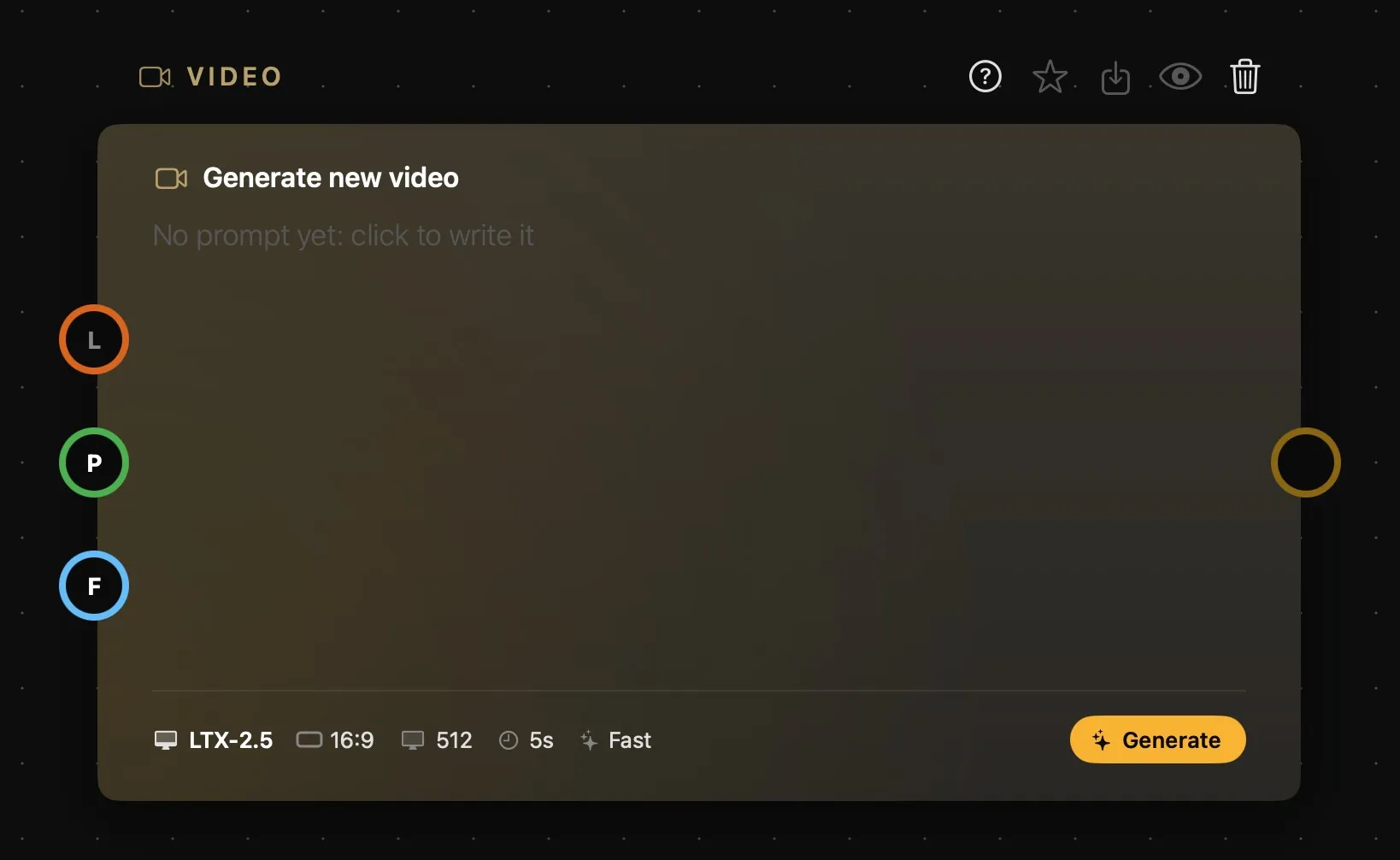
| Area | What it does |
|---|---|
| Above the card | The card’s name, then its buttons: help, favourite, Save As, Preview and delete. See How nodes work. |
| The prompt | A new card reads Generate new video and No prompt yet: click to write it. Select it and click the text to write on the card itself, or write in the Prompt bar. |
| The foot | The model and its main settings — shape, resolution, duration, mode — and Generate. |
| L | LoRAs, up to three — only with LTX running on this Mac. See LoRA. |
| P | The prompt. One only: a Prompt card, a Prompt Text, a Prompt Concat, a part of a Prompt Split, or a Workflow’s prompt. |
| V | An input video, optional, on the models that take one: a clip from another Video card, an Avatar, a Blender render, or a Media Placeholder holding a clip. |
| A | A reference sound, optional, on the models that take one: Seedance 2.5, and Seedance 2.0 on WaveSpeed. |
| FL | First and last frame, on the cloud models that use them: a starting picture and an ending one, with the motion generated between. LTX on this Mac has the F only. |
| 12 | Reference pictures, numbered: up to nine on Seedance, seven on Kling O3 and Gemini Omni. |
| Output | The ring on the right: the clip on show on the card. |
Which rings you see depends on the model — they change when you switch, so pick the model before you wire anything up. Two Ls, two meanings: the orange one is a LoRA, the blue one next to F is the last frame, and a card never has both. A ring is hollow until something is connected and fills with colour once it is. There’s more on all of this in How nodes connect.
Writing the prompt
Select the card and the Prompt bar opens on it: the prompt at a comfortable size, + Presets and the microphone at its foot, and the model’s settings in one row, with Generate at the end.
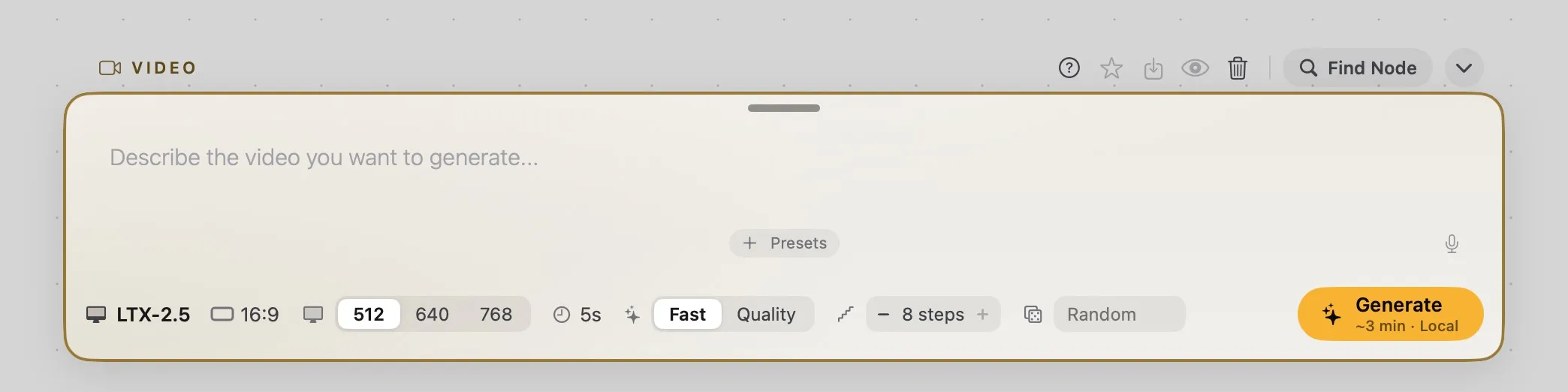
Under Generate is what the run will cost: a price for a cloud model, an estimated time for one on this Mac.
Text-to-video, or image-to-video?
Write a prompt and generate, and the model invents the whole shot from words alone.
Wire a picture into F instead, and it animates that picture instead of guessing: composition, subject and framing are already decided, and the model only has to supply the motion. This is almost always the better way in — with nothing to anchor it, a model has very little to go on, and you can burn through a lot of generations before landing near what you had in mind. The output of an Image card works fine as a starting point.
Which model should you use?
The model menu lists the cloud models of your provider, then the models that run on this Mac.
In the cloud
| Type | Model | Resolution | Duration | Price range | What it’s good at | |
|---|---|---|---|---|---|---|
| Pro | text-to-video image-to-video video-to-video |
Seedance 2.5 | 480p · 720p · 1080p · 4K | 4–30s | $0.72–54 | The most capable card here, and the longest clips: up to nine reference images, a reference clip and a reference audio track in any combination. Reach for it first. |
| Pro | text-to-video image-to-video video-to-video |
Seedance 2.0 | 480p · 720p · 1080p | 5 · 10 · 15s | $0.50–9.00 | The previous generation, still excellent and cheaper. A Fast tier knocks about a sixth off the price. |
| Pro | text-to-video image-to-video video-to-video |
Kling O3 | 720p · 1080p · 4K | 4–15s | $0.34–6.30 | The one for reference images, and for restyling a clip you already have. No first and last frame, except on its 4K tier on Runware — that’s V3’s job. |
| Pro | text-to-video image-to-video |
Kling V3 | 720p · 1080p · 4K | 4–15s | $0.34–6.30 | The first-and-last-frame one: give it a start and an end, get the motion between. Every bit as good as O3, just for a different job. |
| Good | text-to-video image-to-video video-to-video |
FLUX 3 | 720p · 1080p | 5–20s | $0.85–5.80 | Black Forest Labs’ video model, with native audio. The only one here that continues a connected clip rather than restyling it. |
| Good | text-to-video image-to-video |
Veo 3.1 | 720p · 1080p · 4K | 4 · 6 · 8s | $0.40–1.60 | A solid general-purpose pick, and the one to reach for when the clip needs audio. Fixed lengths, and Fast and Lite tiers if the full price is more than the shot deserves. |
| Good | text-to-video image-to-video video-to-video |
Gemini Omni | 720p | 3–10s | $0.39–1.30 | Works from up to seven reference images, or edits a connected clip from a prompt. No first and last frame, and no resolution to choose. |
| Creative | text-to-video image-to-video |
LTX 2.5 | 720p · 1080p · 2K · 4K | 5–20s | $0.54–3.00 | Lightricks’ open model, now with a first and last frame. Fast on WaveSpeed; Fast and Pro on Runware. It also runs on this Mac, for free — see below. |
Prices are indicative and set by the providers, who revise them: see wavespeed.ai or runware.ai for current rates.
Prices are per clip, charged straight to whichever provider you’ve connected. The low end is the shortest clip at the smallest size; the high end is the longest clip at the largest size. Both settings move the figure a lot — on Seedance 2.5 the same model goes from well under a dollar at 480p for four seconds to around $54 at 4K for thirty — so a cheap model run long and large can cost more than an expensive one kept short. Where a model has tiers, the low end is its cheapest tier and the high end its dearest. Rates are WaveSpeed’s, except LTX 2.5’s, which are Runware’s. Generate quotes the price of the run under its title before you press it: check it there.
Some models have a tier or mode in the settings row: Seedance 2.0 has Normal and Fast; Veo 3.1 has Normal and Fast, and Lite on Runware; LTX 2.5 has Fast, and Pro on Runware. Those trade quality for price. Kling O3 and Kling V3 use theirs for the output size instead: 720p, 1080p or 4K. Switching tier keeps every compatible setting, so it’s a cheap thing to try: run a test on Fast, then flip to Normal for the take you keep.
Models that make sound have a switch for it in the row, and a few take a negative prompt, which appears as a second field in the Prompt bar. Which models and which tiers you see depends on your provider — the two catalogues overlap but aren’t identical.
On this Mac
LTX-2.5 and LTX-2.3 — the latter in a 4-bit and an 8-bit version — run on your own Mac: free, with nothing sent anywhere. A new card starts on LTX-2.5 when it’s installed. One that isn’t downloaded yet is greyed out in the menu, and choosing it opens Settings › Local.
- Size: 512, 640 or 768.
- Duration: 2 to 10 seconds. LTX-2.5 also has Auto, which picks the length from the prompt.
- Mode: Fast, or Quality, which needs an extra download the first time and takes a negative prompt — leave it empty and it uses its own list.
- Steps and seed, in the Prompt bar.
- LoRAs, up to three, on the orange
Lrings.
Generate shows an estimate of the time instead of a price, and Cancel stops a run.
First and last frame, or reference pictures?
These are two different ways of feeding a model stills, and they don’t do the same thing.
With first and last frame you give a starting picture and an ending one, and the model generates the motion that connects the two. Use it when you need a precise, controlled transition between two exact shots. Seedance 2.5, Seedance 2.0, Kling V3, Veo 3.1, FLUX 3 and LTX 2.5 support it; Gemini Omni doesn’t, and nor does Kling O3 outside its 4K tier on Runware — O3 works from reference pictures instead.
With reference pictures you wire in one or more stills as inspiration — a subject, a location, a style — on the numbered rings, and the model draws on them without locking any exact frame. More creative freedom, less control over where the shot ends up.
The two can’t be combined: a first and last frame, or references, not both. Wire up a mix and the card says so before it spends anything, rather than quietly dropping half of it. On WaveSpeed, a last frame also needs a first one.
Careful with a clip and frames together. On Seedance 2.0, a clip on
Vdoesn’t go with a first and last frame: the card asks you to move the frames to the numbered rings. Which combinations a model will accept differs between WaveSpeed and Runware for several of these, so a graph that runs on one key may want rewiring on the other.
Some models take a whole video on V. Most of them restyle it — the original motion stays, the look changes — while FLUX 3 does something different and continues the clip from where it ends.
Good to know
- Switching model keeps the settings the new one also has. Wires it can’t take move to a free ring of the same kind, or come off.
- Animating a picture: wire an Image card’s output into
F. - Lifting a result: hold a result for half a second, then drag it onto the canvas or the timeline.