Upscale
Add Node → Generate → Upscale
The simplest card in the app: wire in a picture, press the button, and you get a bigger, sharper version back. No prompt, no other inputs — just the picture. It runs in the cloud, through your provider.
What’s on the card
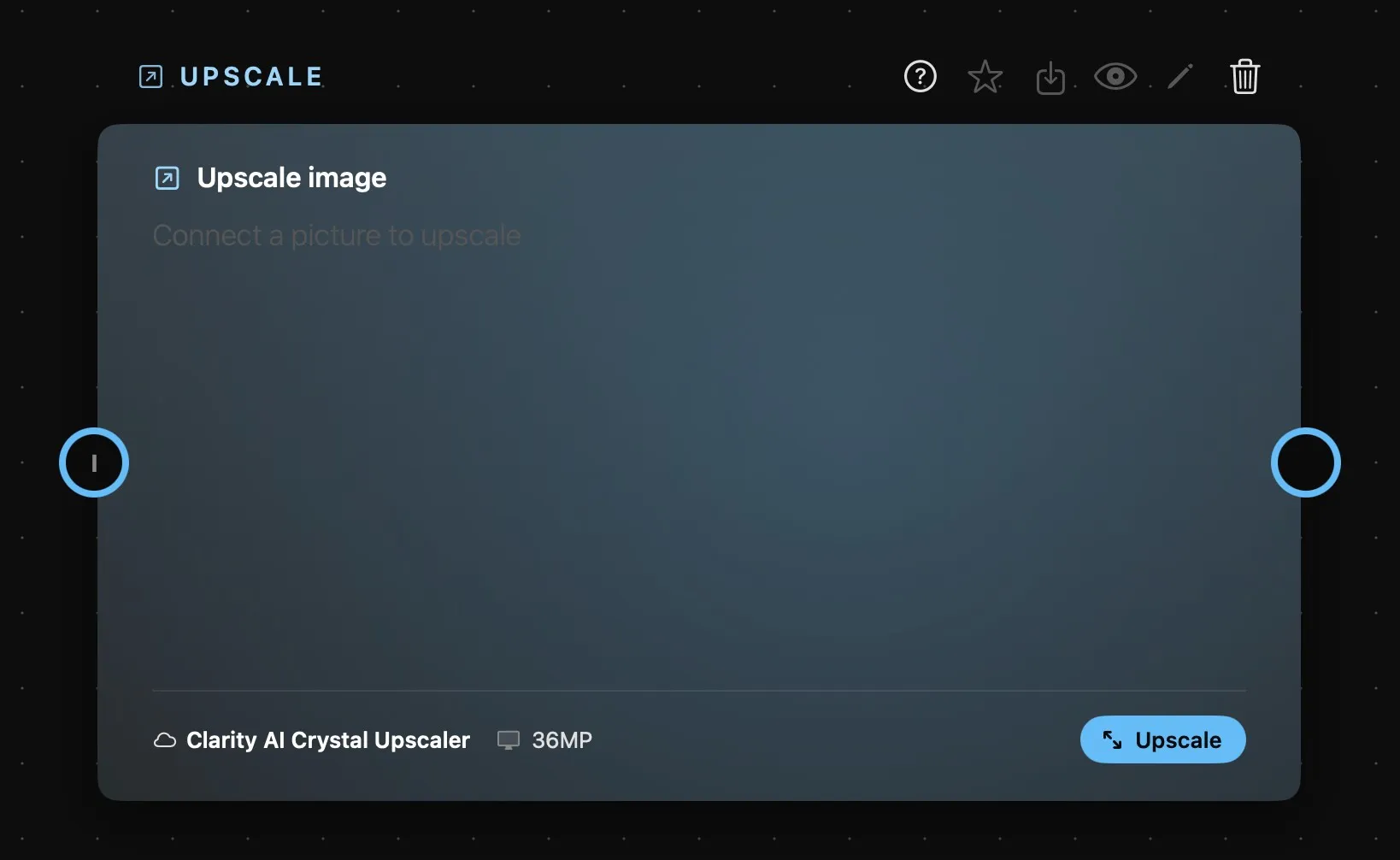
| Area | What it does |
|---|---|
| Above the card | The card’s name, then its buttons: help, favourite, Save As, Preview, Edit Image and delete. They work on the result the card is showing. |
| The card | The picture wired in, shown whole. Until there is one it reads Connect a picture to upscale. |
| The foot | The model, the target size — the Resolution setting, 36MP in the picture — and the Upscale button. |
| I | One only: the picture to enlarge. It reads 1 once something is wired in. |
| Output | The ring on the right: the enlarged picture, ready for anything that takes an image. |
There’s no prompt ring — the card has nothing to read a prompt for. More on rings in How nodes connect.
In the Prompt bar
Select the card and the Prompt bar opens on it, with the model and the Resolution — the target size — in one row and Upscale at the end, with the price of the run under it.
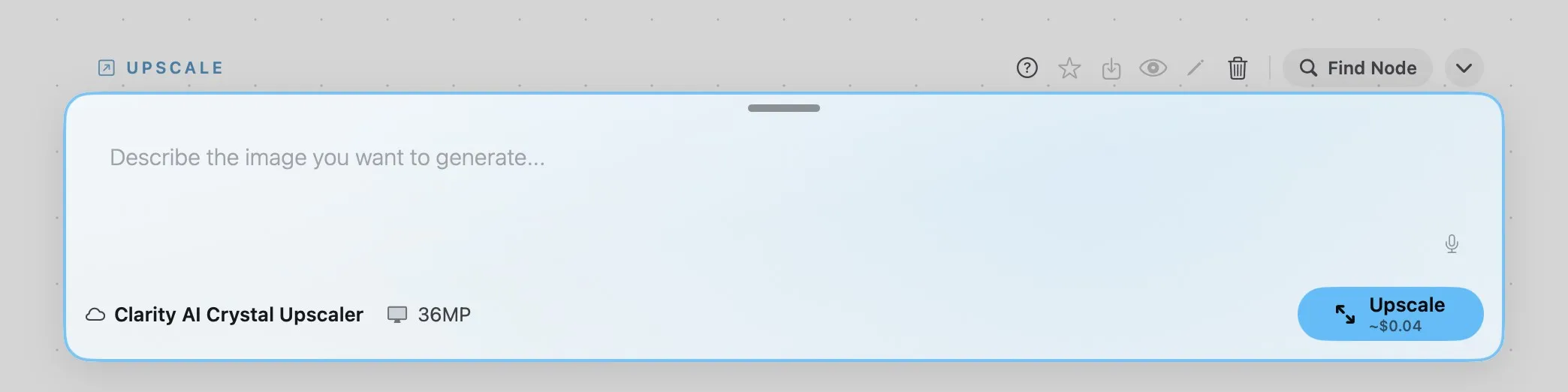
The bar keeps a prompt field like every other generator’s, but an upscale doesn’t use it: whatever you write there isn’t sent.
Each run lands on the card like any other result, with the earlier ones kept in the strip underneath.
Which model should you use?
The models depend on the provider you’ve connected, and the card switches to one of the current provider’s on its own.
| Model | Provider | Target size | What it’s good at |
|---|---|---|---|
| Clarity AI Crystal Upscaler | WaveSpeed | 4 · 16 · 36 · 100 · 400 · 1500 MP | The default, and the right general choice: enlarges while keeping the result faithful to the original, and goes far bigger than anything else here. Starts at 36 MP. |
| Clarity AI Creative Upscaler | WaveSpeed | 4 · 8 · 16 · 25 · 50 · 64 MP | For when you want the model to invent extra detail as it enlarges — texture, sharpness, small elements that weren’t quite there. Starts at 50 MP. |
| Clarity Upscaler | Runware | Twice the size | No target to choose: it always doubles the picture, and takes pictures of up to about 1.15 MP. The cheapest by far. |
Prices are set by the providers, who revise them: see wavespeed.ai or runware.ai for current rates.
Price follows the size you ask for, and it climbs in steps rather than smoothly: nudging the target up one step can cost several times as much for a file that’s only somewhat bigger. The Upscale button quotes the run before you press it — check it there.