LoRA
Add Node → Compose → LoRA
A LoRA file (.safetensors) from this Mac, wired into an Image or Video card to give a model on this Mac a style, a character or a product it was trained on — a look you can’t get from a prompt alone, applied at the strength you choose.
What’s on the card
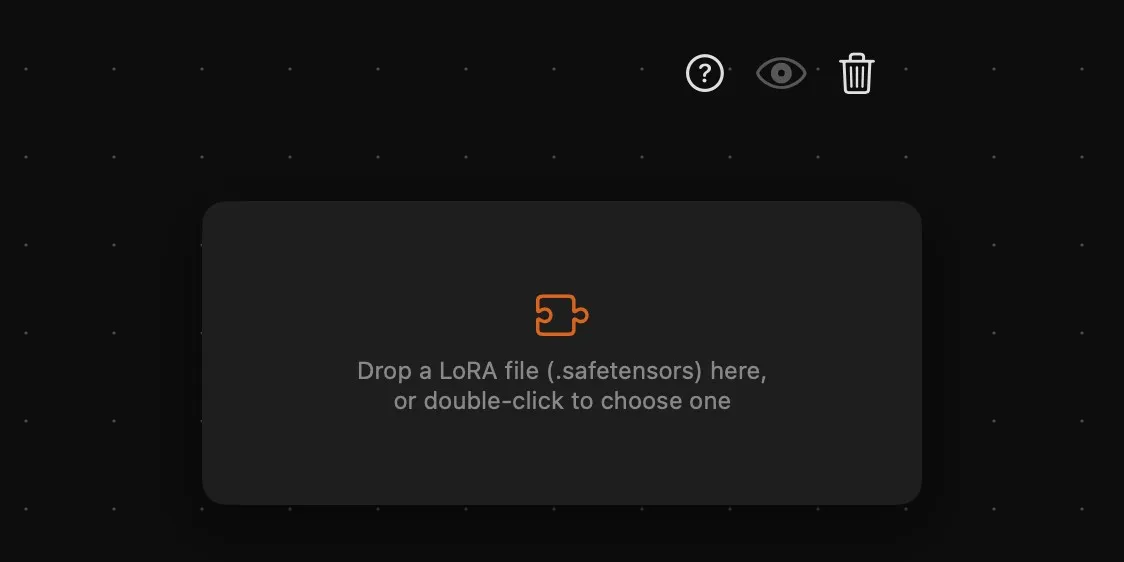
| Area | What it does |
|---|---|
| Above the card | Help, Preview and delete. |
| When empty | Drop a LoRA file (.safetensors) here, or double-click to choose one. |
| Once linked | The file’s name, the model family it was trained for, and its trigger words when the file lists them. |
| Strength | A slider from 0 to 2. At 1, the default, the LoRA applies as it was trained. |
| L | The output, on the right. It appears once a file is linked. |
Adding one
- Drop LoRA files on an Image or Video card and they arrive as LoRA cards already wired into it, to its left — the quickest way.
- Drop a file on the canvas from the Finder, and you get a LoRA card linked to it.
- Add an empty one from the dock or Add Node → Compose → LoRA, then drop a file on it or double-click it to choose one.
Only .safetensors files are taken; anything else is refused, with the reason. Drop a file that a card already links to, and that card is selected instead of a second one being made.
To change the file later, double-click the card, or right-click it and choose Change LoRA File…. Show in Finder takes you to it.
Which cards take it
Image and Video cards set to a model on this Mac that takes LoRAs:
| Card | Models |
|---|---|
| Image | FLUX.2 Klein 4B, FLUX 3 Image Klein, Z-Image Turbo, Qwen-Image and Qwen-Image Edit |
| Video | LTX-2.5 and LTX-2.3 |
On those, the card grows an orange L ring above the prompt. Wire a LoRA into it and the ring takes a number, with a fresh L below for the next — up to three per card. Their order is the order of the rings, and you change it by dropping a wire on another of them. In the Prompt bar, each LoRA wired in shows as an orange square in the column left of the prompt; hover it for its name and strength.
Cloud models don’t take LoRAs, so a card on a cloud model has no L ring, and switching a card to one takes its LoRA wires off. Drag a wire out of a LoRA card and let go on empty canvas, and you’re offered a new Image or Video card already on a local model the LoRA fits.
Good to know
- Linked, not copied: the file stays where it is on the Mac. If you move or delete it, the card says so in red, and Generate won’t go until you point it at the file again.
- The right model: a LoRA is trained for one model family. If it was trained for another model than the card’s, Generate tells you before running — unplug it, or choose a model it fits. One trained for a family no model here runs, such as FLUX.1 or Stable Diffusion, is flagged in red on the LoRA card itself.
- Trigger words: some LoRAs only show their effect when the prompt uses the words they were trained with. When the file lists them, the card shows up to three — put them in your prompt.
- What a result keeps: each picture or clip remembers the LoRAs it was made with, and the Preview lists them.