Managing your Projects
On Windows, press
Ctrlwherever you see⌘.
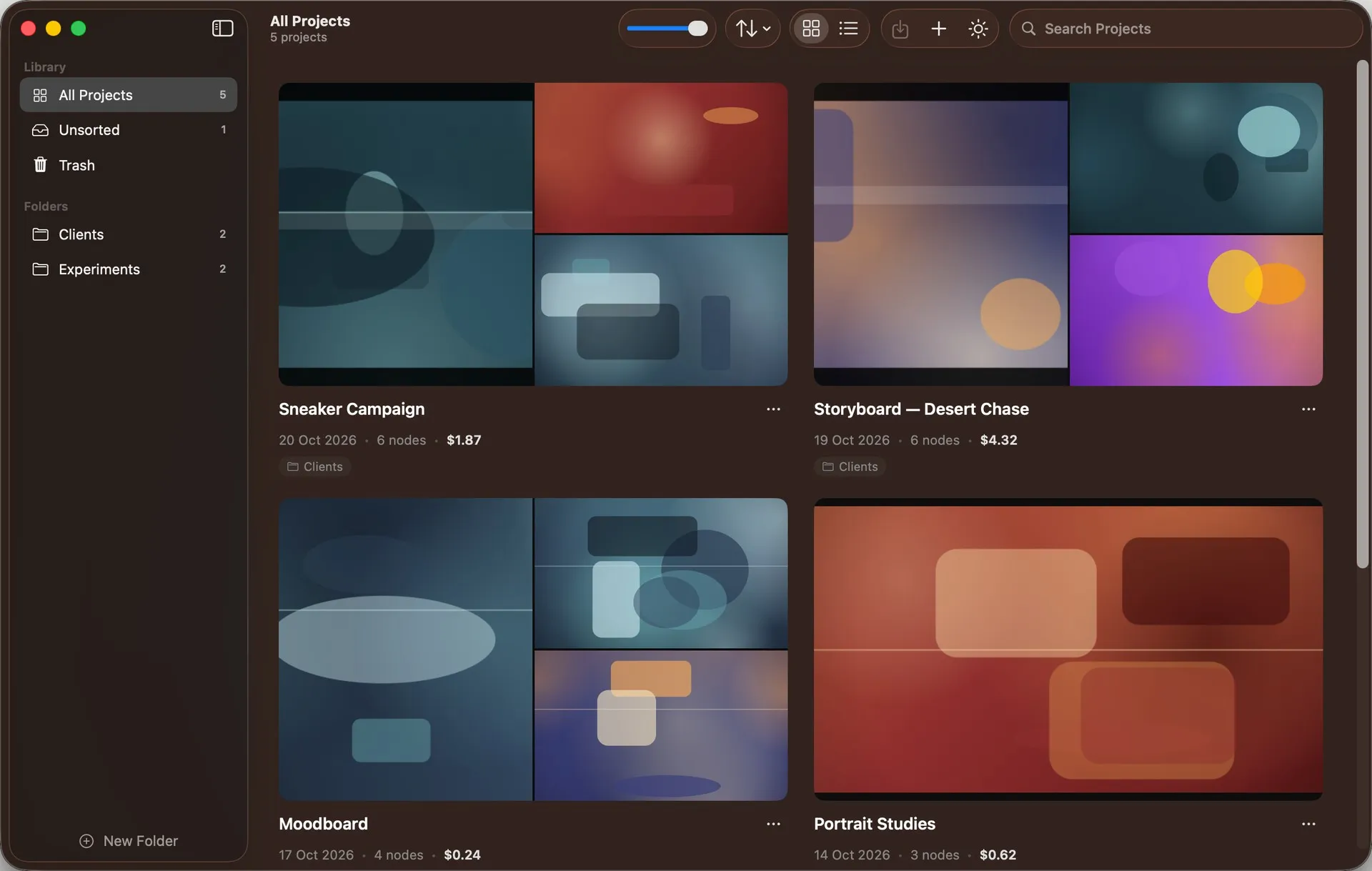
Node Composer opens on the Project Library — your home screen. Every project you’ve built lives here, and it’s the only place where Settings can be opened.
The sidebar
On the left you’ll find All Projects, Unsorted (projects not yet filed into a folder), your own Folders, and Settings pinned at the bottom — the only way in to connect your API keys and activate your license. A small badge on Settings means something needs your attention, like a missing key or an inactive license.
Creating and opening a project
Click New Project, give it a name (or leave it blank for “Untitled Project”), optionally pick a folder, and you’re straight into the editor. To open an existing project, just click its row.
What each row tells you
Every project shows a few preview images plus when it was last modified, how many nodes it holds, its size, and what it’s cost you to generate so far. You might also see a padlock (meaning your license isn’t active and the project is read-only) or a “Free Project” pill marking your one editable project on the Starter Edition.
Row actions
Right-click a row for the usual actions: Open, Rename, Duplicate (copies the project and its media, Studio only), Move to folder, Export (Studio only), Reset Cost, and Delete. Deleting removes the project and everything in it — there’s no undo, so the app double-checks before doing it.
Folders
Folders sit one level deep — no folders inside folders. Create one from the sidebar, drag a project’s row onto it to file it, or use Move to folder from the right-click menu. A folder needs to be empty before you can delete it.
Finding things
The search box filters by name as you type, and Sort by lets you order by last modified, name, creation date, size or cost.
Tabs
Node Composer is tabbed — press ⌘T for a new one, ⌘W to close it. Each tab is a fully independent project, so you can have several open side by side. Double-click a tab’s title to rename that project.
Import and export
Export saves a project as a .nodecomposer file — a portable copy of just that composition and the media it actually uses, not your whole library. To bring one in, double-click the file, drag it into the Node Composer window, or use Import Project (⌘O): either way it always creates a new project rather than overwriting anything, so it’s safe.
Starter vs Studio
Without an active license, you’re in the Starter Edition: you get one editable project, capped at 20 nodes, and everything else opens read-only. Generation itself is never limited by your license — you always generate using your own provider credits, in either edition. Activate Studio and all of these limits lift.
Where it all lives
Everything — projects, folders, generated and uploaded files — sits in one library folder on your machine. See Where are my projects? for the exact path.