Image
Add Node → Generate → Image
This is the card you’ll use the most. It makes a picture from a prompt, with or without reference pictures — in the cloud, through your provider, or on this Mac.
What’s on the card
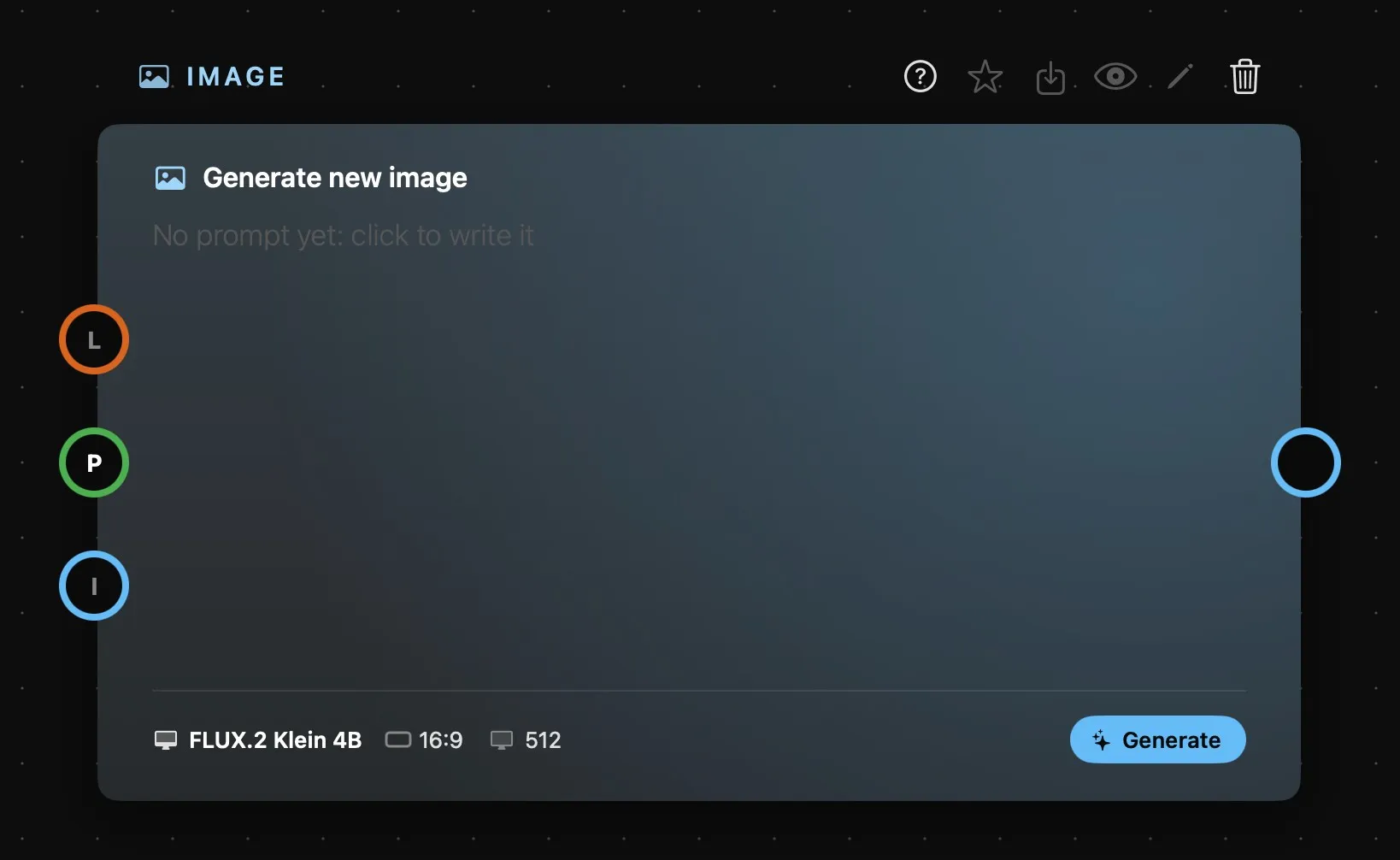
| Area | What it does |
|---|---|
| Above the card | The card’s name, then its buttons: help, favourite, Save As, Preview, Edit Image and delete. See How nodes work. |
| The prompt | A new card reads Generate new image and No prompt yet: click to write it. Select it and click the text to write on the card itself, or write in the Prompt bar. A prompt wired in shows here too, under the name of the card it comes from. |
| The foot | The model and its main settings, and Generate. |
| L | LoRAs, up to three — only with a model on this Mac that takes them. See LoRA. |
| P | The prompt. One only: a Prompt card, a Prompt Text, a Prompt Concat, a part of a Prompt Split, or a Workflow’s prompt. |
| I | Reference pictures. Wire one in and the ring shows its number, with a fresh I below it for the next, up to as many as the model takes. |
| Output | The ring on the right: the picture on show on the card. |
A ring is hollow until something is connected and fills with colour once it is, so you can see at a glance what the card still needs. With several inputs the rings fold into a single dot at rest, and fan out as the pointer comes near. There’s more on all of this in How nodes connect.
Writing the prompt
Select the card and the Prompt bar opens on it: the prompt at a comfortable size, + Presets and the microphone at its foot, and the model’s settings in one row, with Generate at the end.
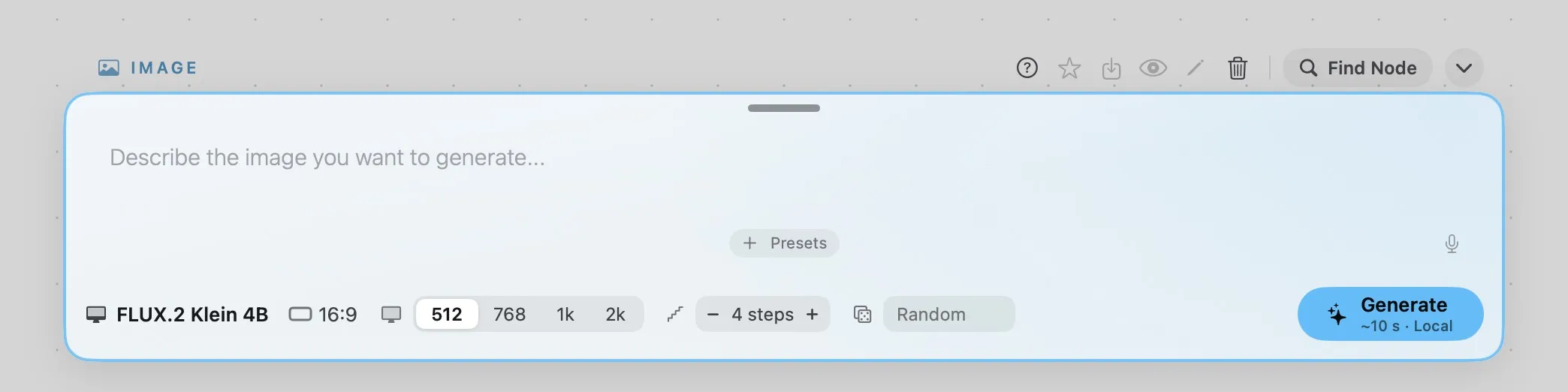
Under Generate is what the run will cost: a price for a cloud model, an estimated time for one on this Mac. Each result lands on the card, with the earlier ones kept in the strip underneath.
Text-only, or with references?
Write a prompt and generate, and you get a plain text-to-image result.
Wire in one or more pictures as well, and the card switches to image-to-image: now the model looks at your references while it generates, instead of working from words alone. This is the best way to keep something consistent across generations — a character, a product, a location — rather than hoping a text description gets it right.
Once you’ve wired in references, you can call them out directly in the prompt, something like “combine the product from image 2 into image 1.”
Which model should you use?
The model menu lists the cloud models of your provider — WaveSpeed or Runware, chosen in Settings › Providers — then the models that run on this Mac. A new card starts on FLUX.2 Klein 4B when this Mac has it, otherwise on a cloud model.
In the cloud
| Type | Model | Resolution | Input | Price range | What it’s good at | |
|---|---|---|---|---|---|---|
| Pro | image-to-image text-to-image |
Nano Banana Pro | 1K · 2K · 4K | 8 | $0.14–0.24 | Google’s most capable, and the best here at plain-language prompting with references. Reach for it when consistency matters. |
| Pro | image-to-image text-to-image |
Nano Banana 2 | 1K · 2K · 4K | 14 | $0.045–0.14 | Same family, a step down. Still excellent with references and simple prompts, and it takes more of them than anything else here. |
| Pro | image-to-image text-to-image |
Nano Banana 2.1 | 1K · 2K · 4K | 14 | $0.034–0.12 | The newest of the family, with the same fourteen references as Nano Banana 2. |
| Good | image-to-image text-to-image |
Nano Banana | HD | 8 | $0.038 | The original Google model. Solid for straightforward edits, and cheap enough to run test after test at good quality. |
| Pro | image-to-image text-to-image |
GPT Image 2.5 Sunburst | 1K · 2K · 4K | 16 | $0.01–1.00 | The slower of the two GPT Image 2.5 tiers, at the same price: the extra time goes into fine detail and into text that comes out readable. The one for the final run. |
| Pro | image-to-image text-to-image |
GPT Image 2.5 Flare | 1K · 2K · 4K | 16 | $0.01–1.00 | The quicker of the two GPT Image 2.5 tiers, at the same price: a little less fine detail, back much sooner. The one for drafts and variations. |
| Pro | image-to-image text-to-image |
GPT Image 2 | 1K · 2K · 4K | 10 | $0.01–0.72 | A solid all-rounder for both text-to-image and image-to-image, now one version behind. |
| Pro | text-to-image | Midjourney | Standard · HD | 1 | $0.10–0.15 for 4 | WaveSpeed only. The Midjourney look, four images per run. Text-to-image, but the one I ring takes a style reference: it guides the look of the result, not what’s in it. |
| Good | image-to-image text-to-image |
Qwen Image 3.0 | 1K · 2K | 3 | $0.03–0.075 | Strong instruction following, and the one to try for text inside the image in Chinese as well as English. A Normal/Pro quality toggle sets the tier. |
| Good | image-to-image text-to-image |
Seedream 5.0 Pro | 1K · 2K | 10 | $0.045–0.09 | Strong image-to-image, for more control over composition and style. |
| Creative | image-to-image text-to-image |
Flux 2 Max | HD | 3 | $0.07 | Fewer reference slots, more character in the result. For a look, not a faithful copy. |
| Creative | image-to-image text-to-image |
Z-Image | HD | 1 | $0.005 | One reference, and the cheapest run here. Good for quick variations. |
| Creative | text-to-image | Ideogram 4.0 | 1K · 2K | 0 | $0.025–0.20 | Text-only, and the best choice when you need clean, accurate text inside the image. |
| Creative | text-to-image | ERNIE | HD | 0 | $0.03 | Text-only. Worth trying for a different feel from a prompt alone. |
Prices are indicative and set by the providers, who revise them: see wavespeed.ai or runware.ai for current rates.
Resolution lists every size a model can output; HD means it has no resolution setting at all and always returns roughly 1024×1024 (Midjourney has an HD toggle instead, and the price follows it). Input is how many reference pictures the model will look at — the number of picture rings the card will grow for it. Prices are per image, charged straight to whichever provider you’ve connected. The figures here are WaveSpeed’s rates, except Nano Banana 2.1’s, which are Runware’s; each provider prices its own catalogue, and its version of a model sometimes takes a different number of references. Where there’s a range, the low end is the smallest size at the lowest quality and the high end is 4K at the highest, so the setting you pick matters as much as the model you pick.
More advanced models can take quite a few reference pictures at once, but the count matters far less than the choice. References pulling in different directions give the model contradictory instructions, and you get muddle instead of the result you were after — so add a picture because it says something the others don’t, not to fill the rings.
Which models you see depends on your provider — the two catalogues overlap but aren’t identical, and Midjourney is WaveSpeed-only. Some models also offer a transparent background, and a few take a negative prompt, which appears as a second field in the Prompt bar.
Midjourney is the odd one out. Every run returns four images, not one, and the price is for the set: $0.10 in Standard, $0.15 with HD on. Its single picture ring isn’t a reference in the usual sense — Midjourney reads it for style only, so the colours, the mood, the technique carry over, while the subject comes from the prompt alone. Leave it empty for plain text-to-image.
On this Mac
These run on your own Mac: free, with nothing sent anywhere. Each one shows in the menu how much memory it needs, and one that isn’t downloaded yet is greyed out — choosing it opens Settings › Local, where you download it.
- FLUX.2 Klein 4B — the default, when it’s on this Mac. Takes LoRAs and up to four pictures.
- FLUX 3 Image Klein — Black Forest Labs’ FLUX 3, for photos and legible text. Takes LoRAs and up to four pictures. Its download needs a Hugging Face token from an account that has accepted the FLUX licence; Settings › Local explains how.
- Z-Image Turbo, in a 4-bit and an 8-bit version. Takes LoRAs.
- Qwen-Image and Qwen-Image Edit. Both take LoRAs and a negative prompt; Edit works on the pictures you wire in, and won’t run without one.
- MOSS-Image — long text in English and Chinese, and layouts from JSON prompts. Takes a negative prompt; no LoRAs and no pictures.
- SenseNova and Ming-Image — Ming can also make a transparent background.
A local model has its resolutions side by side — 512, 768, 1k and 2k — and in the Prompt bar the steps, with − and + around the recommended number, and the seed: Random, or a number you type to repeat a result. Generate shows an estimate of the time instead of a price, and Cancel stops a run.
Good to know
- Switching model keeps the settings the new one also has. Wires it can’t take move to a free ring of the same kind, or come off; pictures beyond what it takes stay wired, drawn in red, and come back into play on a model that takes more.
- Editing a result: the pencil above the card opens Edit Image, to draw on it. In the Preview you can place numbered spots and write what should change at each one.
- Lifting a result: hold a result for half a second, then drag it onto the canvas or the timeline.