The Prompt bar
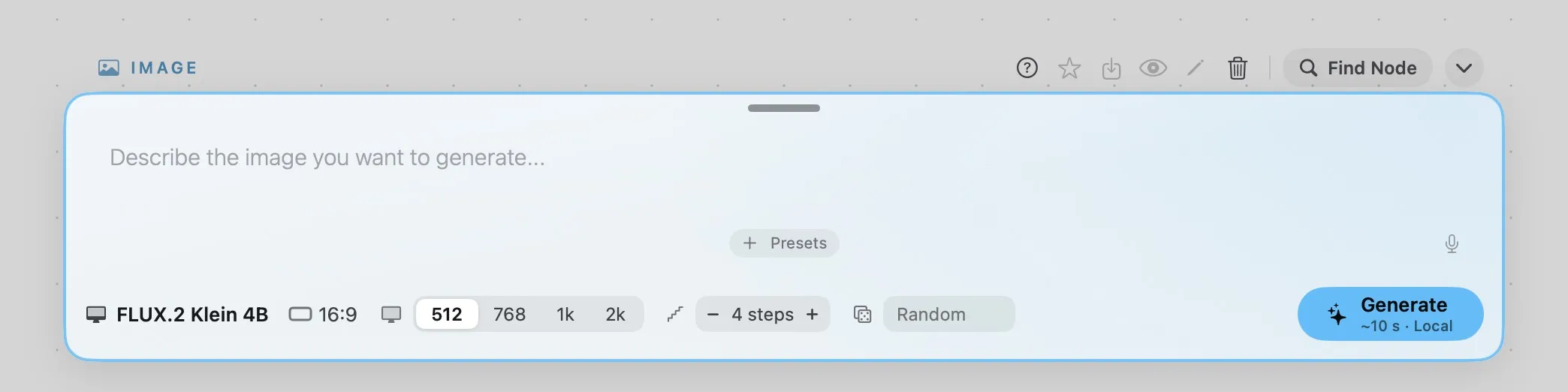
The Prompt bar runs along the bottom of the canvas. Select a card and the bar opens on it, so you can write the prompt and change the settings at a comfortable size, without zooming in on the card. It is tinted in the card’s colour and has the same coloured border as the card, so you can always tell which card you are editing. While the card generates, a brighter light runs around the border.
The bar opens on these cards:
| Card | What the bar shows |
|---|---|
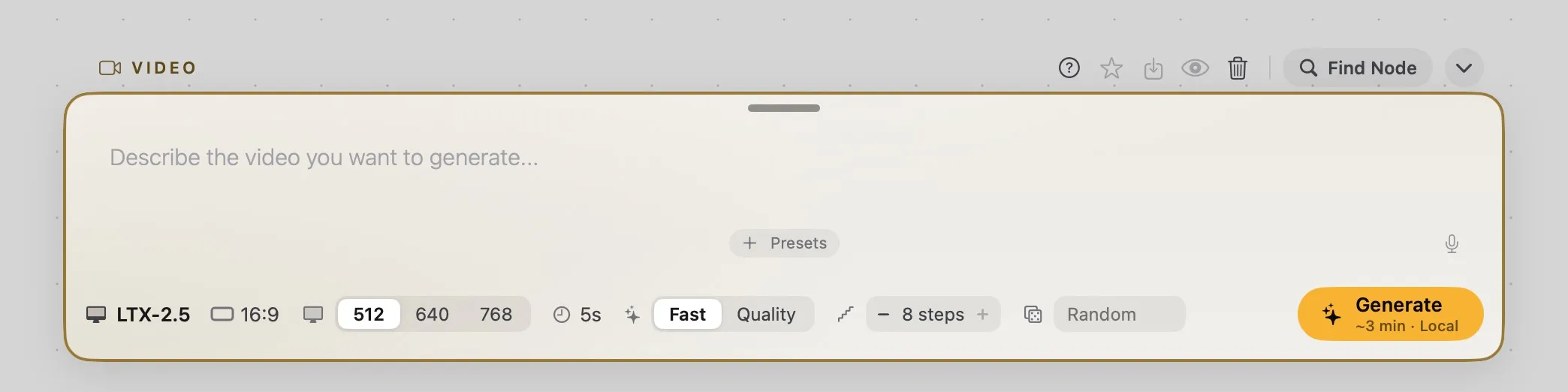
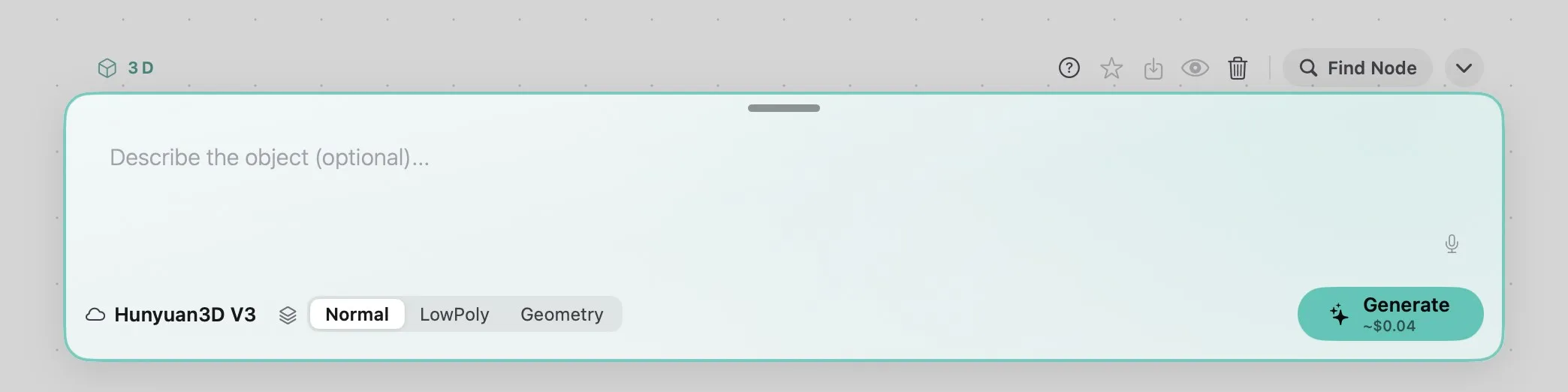
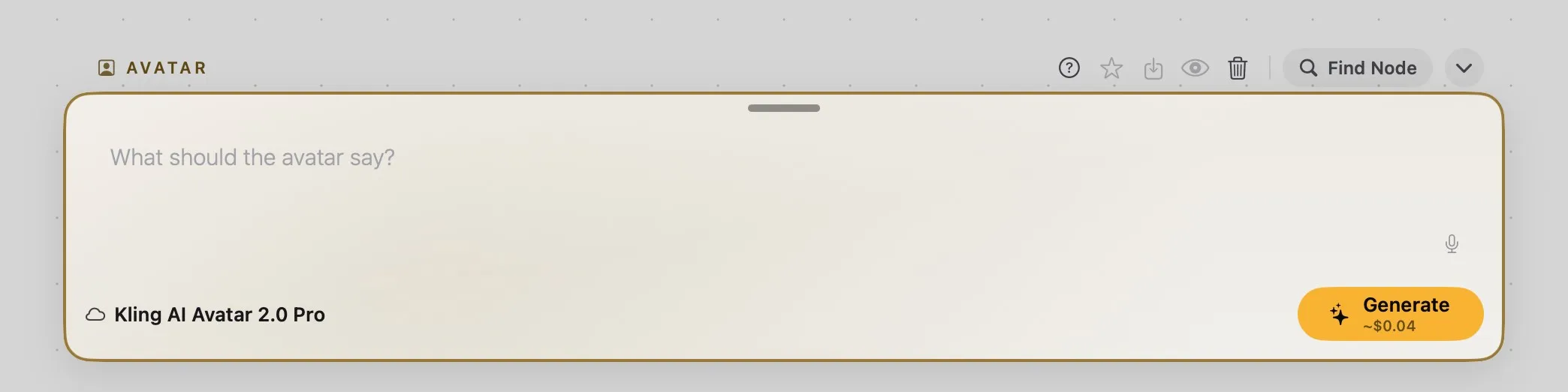
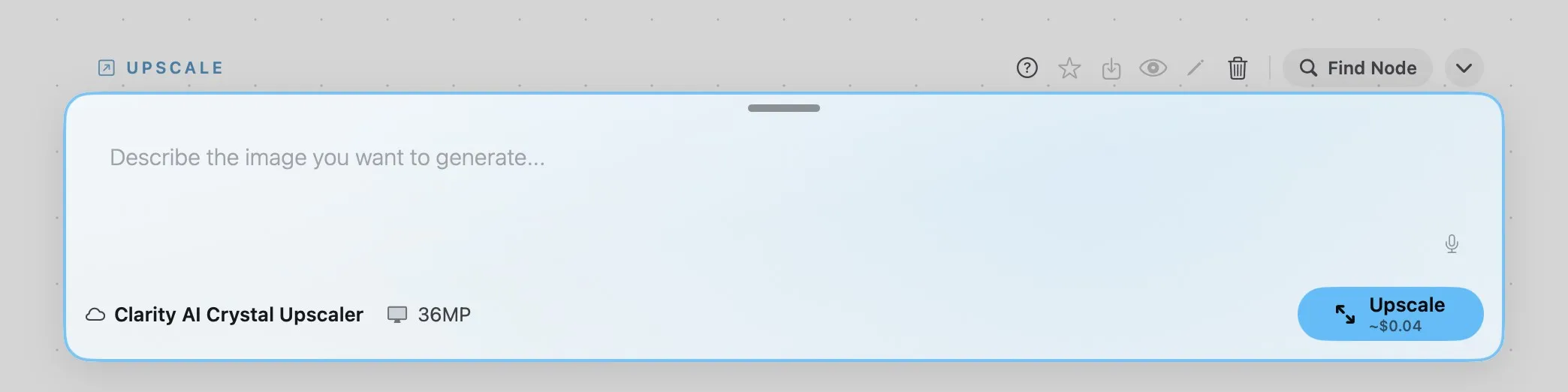
| Image, Video, 3D, Avatar, Upscale | The prompt, then the model’s settings in one row, with Generate (Upscale on the Upscale card) at the end of the row |
| Blender | The scene open in Blender instead of a prompt, then the render settings and Render |
| Prompt | The conversation with the language model, the message field, and the text model’s settings |
| Prompt Text | The text, ready to write |
For any other selection the bar folds into the dock. That covers no selection, several cards at once, a picture or a clip on the canvas, a Frame, a Label, and every other card.
The line above the bar
- Left: the card’s name, as it appears above the card.
- Right: the card’s own buttons (help, favorite, Save As, Preview, Edit Image, delete) work as they do above the card. Next to them:
- Find Node brings the card to the middle of the canvas, above the bar.
- The chevron makes the bar compact (see below).
Writing the prompt
- The prompt field is large and scrolls when the text is long.
- Presets: on Image, Video and Prompt Text, + Presets at the foot of the prompt adds presets from your library. The presets already on the card are listed next to it. See Presets.
- Dictation: the microphone dictates into the field.
- Click once to record, click again to stop. Your words go where the cursor is.
- Esc throws the recording away.
- A recording can be up to two minutes long and is transcribed with Whisper on WaveSpeed.
- A wired prompt: when a prompt is wired into the card (from a Prompt Text, a Prompt card or a Prompt Concat), the field shows that prompt and can’t be edited here: Prompt provided by connected node.
- Negative prompt: when the selected model takes one, a second, smaller field appears under the prompt. LTX in Quality mode uses its own list when you leave the field empty.
What is wired in
At the left of the prompt is a column with one small square for each ring that has a wire in it, in the rings’ order. Each square shows the picture, the clip’s first frame, or a symbol for a prompt, a sound or a LoRA, under the ring’s letter or number.
- Hover a square to see it larger next to the bar, with the name of the card it comes from.
- Click a square to bring that card to the middle of the canvas.
A square turns red when the selected model can’t take that input.
Settings and Generate
Under the prompt, the model’s settings sit in one row:
- Always there: the model menu.
- Depending on the model: shape, resolution, duration, quality or mode, and sound.
- Only in the bar: models on this Mac add steps (− and +, with the recommended number) and the seed (Random, or a number you type), as well as their resolutions side by side.
In a narrow window the row folds back into compact chips.
Generate sits at the end of the row. Under its title, in small type, is the estimate:
- for a cloud model, the approximate price of one run (for example ~$0.04);
- for a model on this Mac, the approximate time and Local (for example ~10 s · Local).
While a result is being made:
- New opens the card’s draft, so you can write and send the next generation meanwhile.
- A generation on this Mac can be stopped with Cancel, which also shows how far it has got.
- A cloud generation shows the provider’s name instead. Once sent it can’t be stopped, and the result comes back to the card.
Results and drafts
- A result is on show on the card: the bar shows the prompt and the settings it was made with, including what was wired in at the time. Change anything and the bar switches to a new draft built from that result; the card keeps showing the result. Generate on a result makes another one like it.
- The result failed: the reason is written at the foot of the prompt.
- The result was made with presets: they are listed at the foot of the prompt.
The Prompt card in the bar
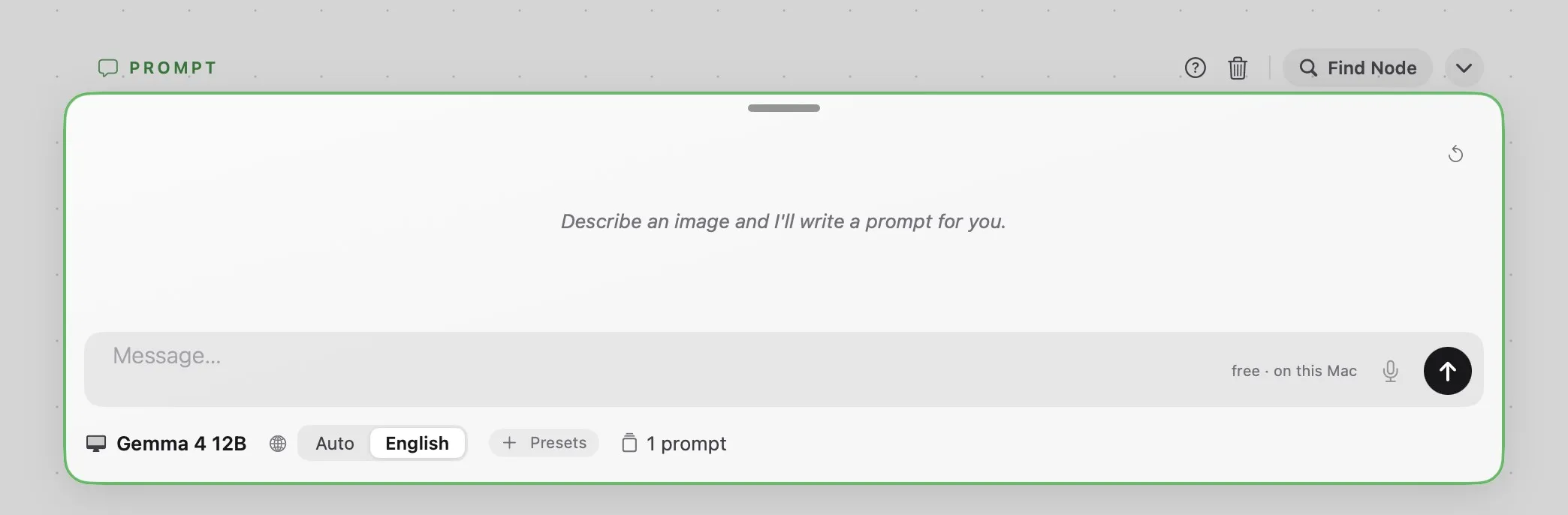
On a Prompt card the bar is split in two:
- Top: the conversation. You can select and copy the replies; the arrow at the top right resets the conversation.
- Bottom: the message field. Return sends, Shift-Return starts a new line. It has the microphone and the send button, and says what a message costs, or free · on this Mac for a local model.
Under them are the text model, the language (Auto or English), the presets, and how many prompts the card writes at once (1 to 10, one per output). More on the Prompt page.
Prompt Text in the bar
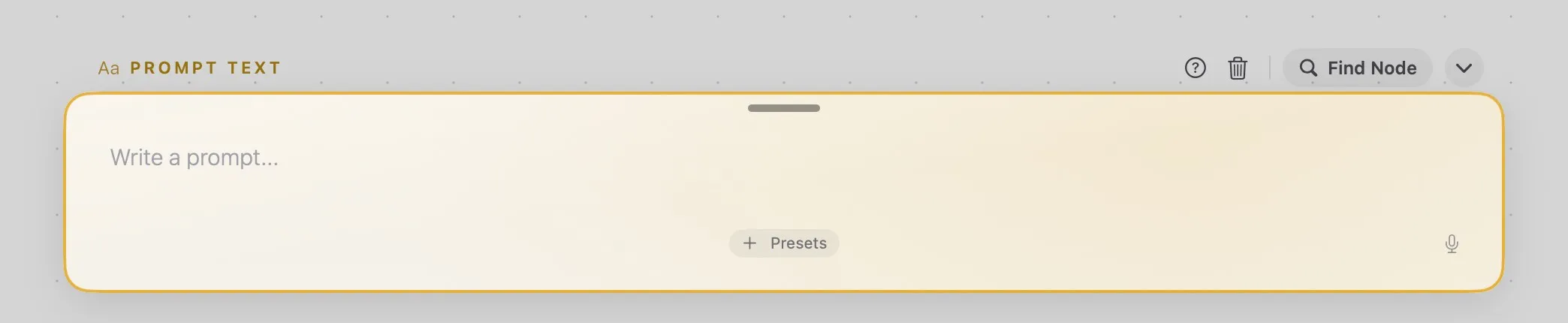
A Prompt Text is written entirely in the bar, with presets and dictation at the foot of the text. If a prompt is wired into it, the bar shows that prompt, read-only.
Blender in the bar
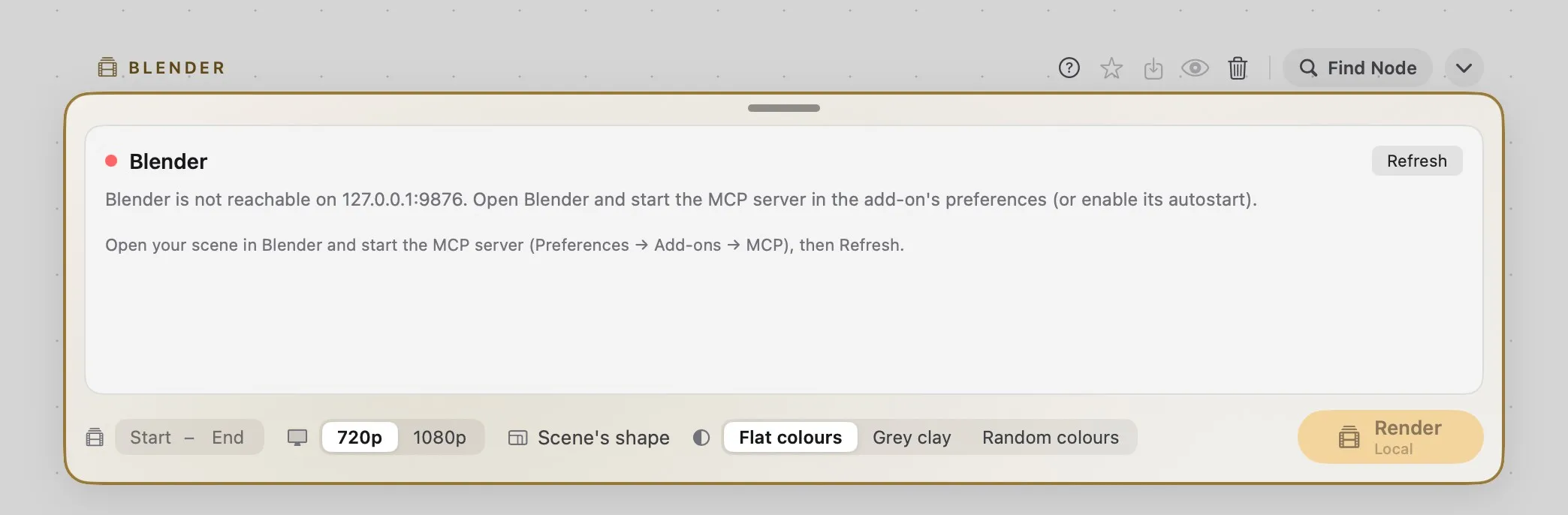
On a Blender card the bar shows the scene open in Blender instead of a prompt: the file, the camera, the frame range, the size of the clip it will make, and the objects. It refreshes by itself every few seconds. If Blender can’t be reached, it says how to start the add-on’s MCP server and offers Refresh.
Under it are the frame range, the size (720p or 1080p), the shape and the look, with Render, which is free and runs on this Mac. More on the Blender page.
The other cards in the bar
Video
3D
Avatar
Upscale
Size, compact mode and the dock
- Taller or shorter: drag the bar’s top edge (the small handle). Double-click the handle to bring it back to its shortest. Each card opens the bar at its shortest.
- Out of the way: the canvas moves up so the selected card stays in sight above the bar.
- Compact: the chevron, or View › Show Prompt Bar (⌥⌘P), folds the bar into the dock whatever is selected. To open it again, double-click a card it works on, or use ⌥⌘P.
- The dock: a pill with every node you can add, grouped as Generate, Compose and Connectors. Hover a symbol to see its name, click it to add that node in the middle of the canvas, or drag it to where you want it.