Text
Add Node → Tools → Text
A floating note you can drop anywhere on the canvas — a title for a section, a caption under a result, a reminder to yourself. It doesn’t connect to anything or take part in your workflow; it’s just there to keep the canvas readable.
What’s on the node
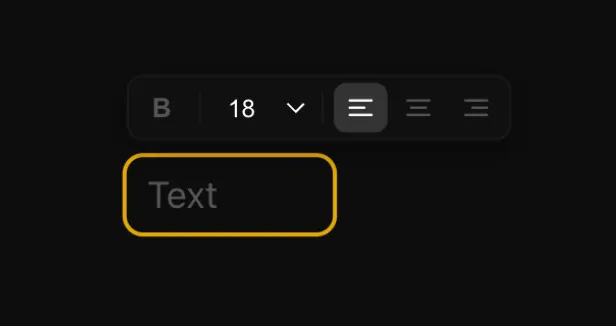
| Area | What it does |
|---|---|
| The note | Click in and type. It opens straight into editing when you add it. |
| Formatting toolbar | Appears above the note when it’s selected: bold, text size, and left, centre or right alignment. |
| Handles | None. A note carries no data and connects to nothing. |
Adding and formatting one
Add it from Add Node → Tools → Text, or right-click the canvas and choose Add Text. It opens straight into editing, so you can start typing right away.
Select the note and a small toolbar appears above it, letting you bold the text, change its size, and align it left, centre or right. With nothing highlighted, formatting applies to the whole note — so you don’t need to select everything first. Highlight just a word or line, and the formatting applies only to that part, which is handy for mixing a bigger title with smaller body text.