01What are the system requirements?
Node Composer runs on macOS 12 or later and currently requires an Apple Silicon Mac. Intel Macs are not supported at this time. A stable internet connection is required for license validation and AI generation requests.
All AI inference and generations run in the cloud via WaveSpeed, so you don't need a powerful machine, your Mac only handles the editor UI and project files.
Recommended: 16 GB RAM, 10 GB free disk space for projects and generation cache.
02How do I install Node Composer?
- Download the latest
.dmgfrom the homepage. - Open the disk image and drag the Node Composer app into the Applications folder.
- Launch the app. On first run, macOS may ask to confirm opening an app downloaded from the internet.
- Sign in with the email used at checkout to activate your license.
03How do I connect WaveSpeed?
Node Composer needs a WaveSpeed API key to send generation requests. The whole setup takes about a minute.
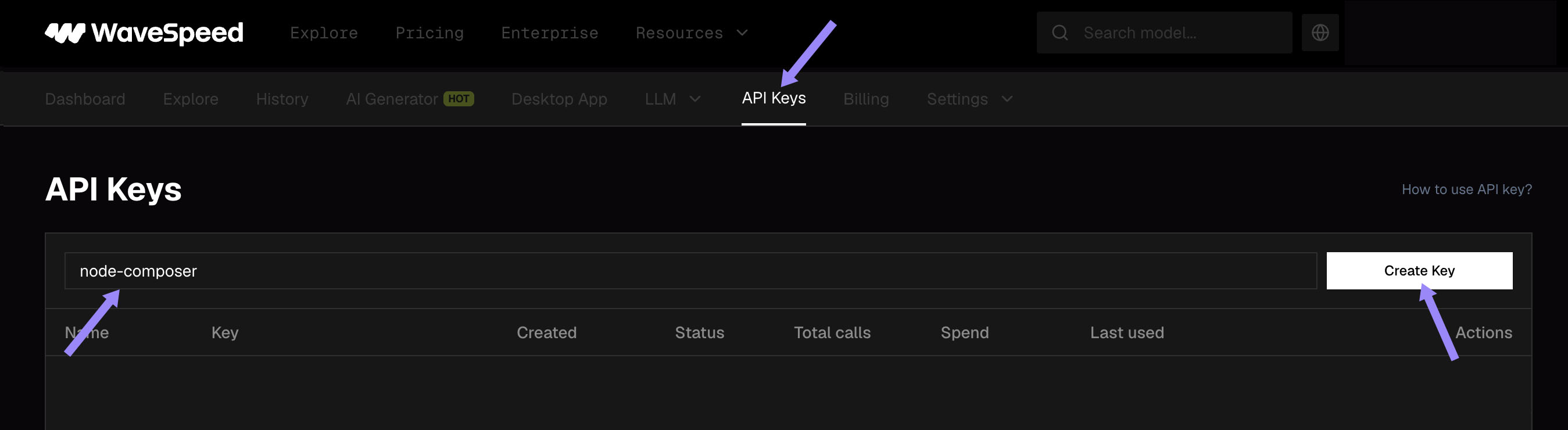
Open the API Keys page on WaveSpeed (sign up if you don't have an account yet), type a name for the key (e.g. node-composer) and click Create Key.
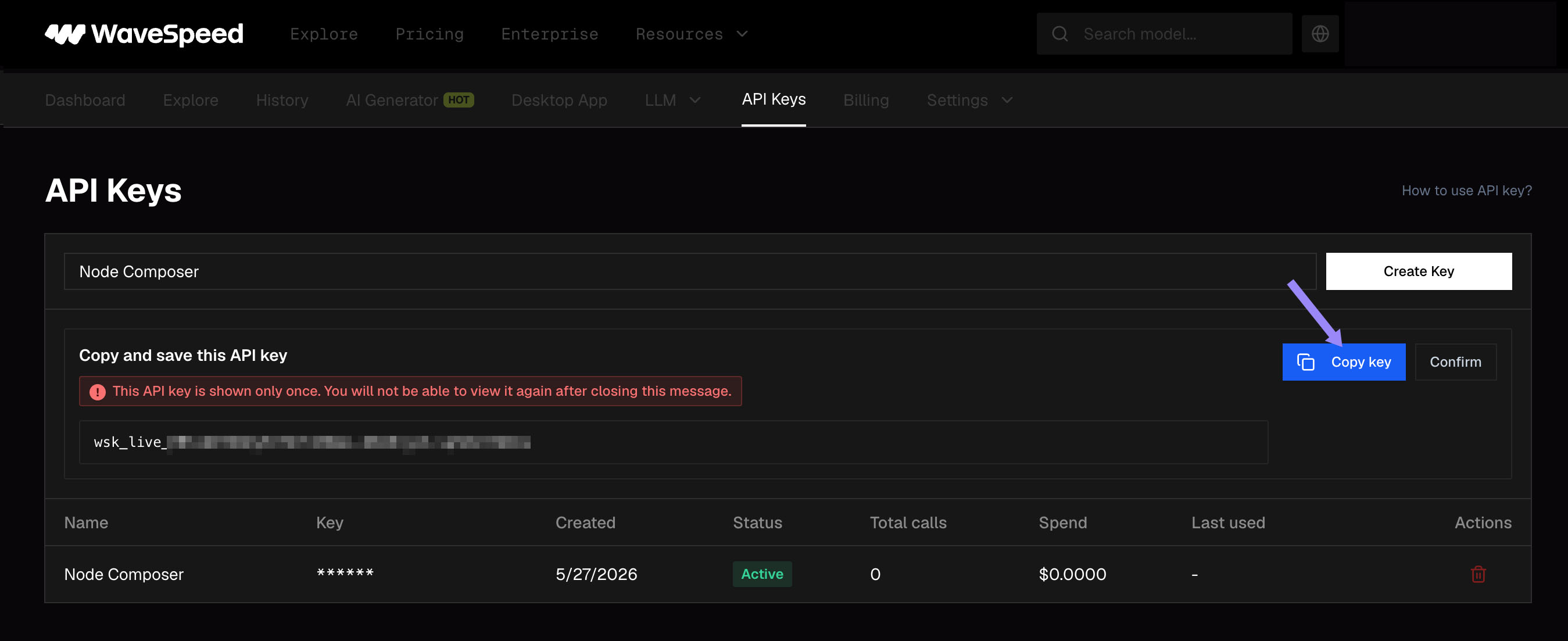
Click the blue Copy key button to copy the generated key. Keep it safe, treat it like a password, you'll only be shown the full key once.
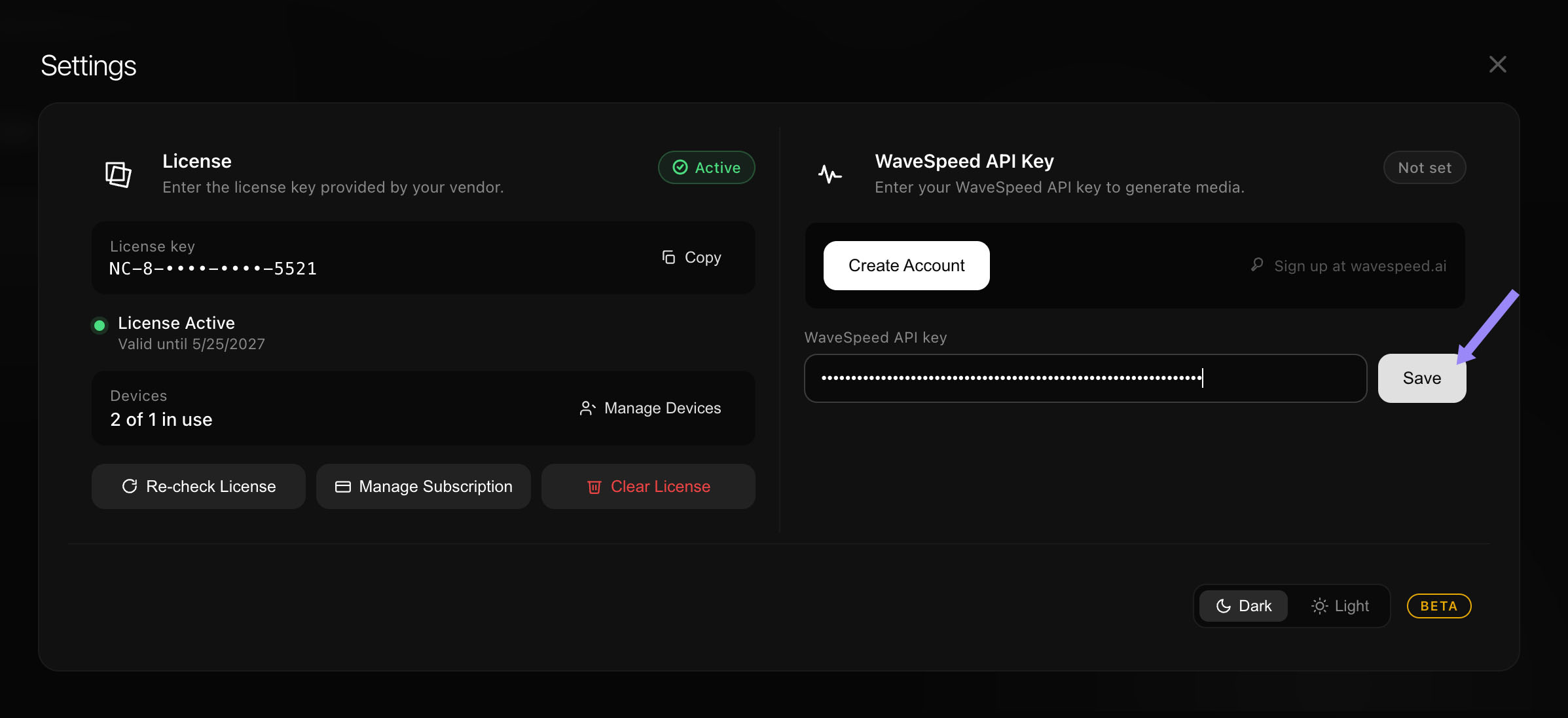
In Node Composer, open Settings from the bottom-left of the Project Library. Paste the key into the WaveSpeed API key field and hit Save.
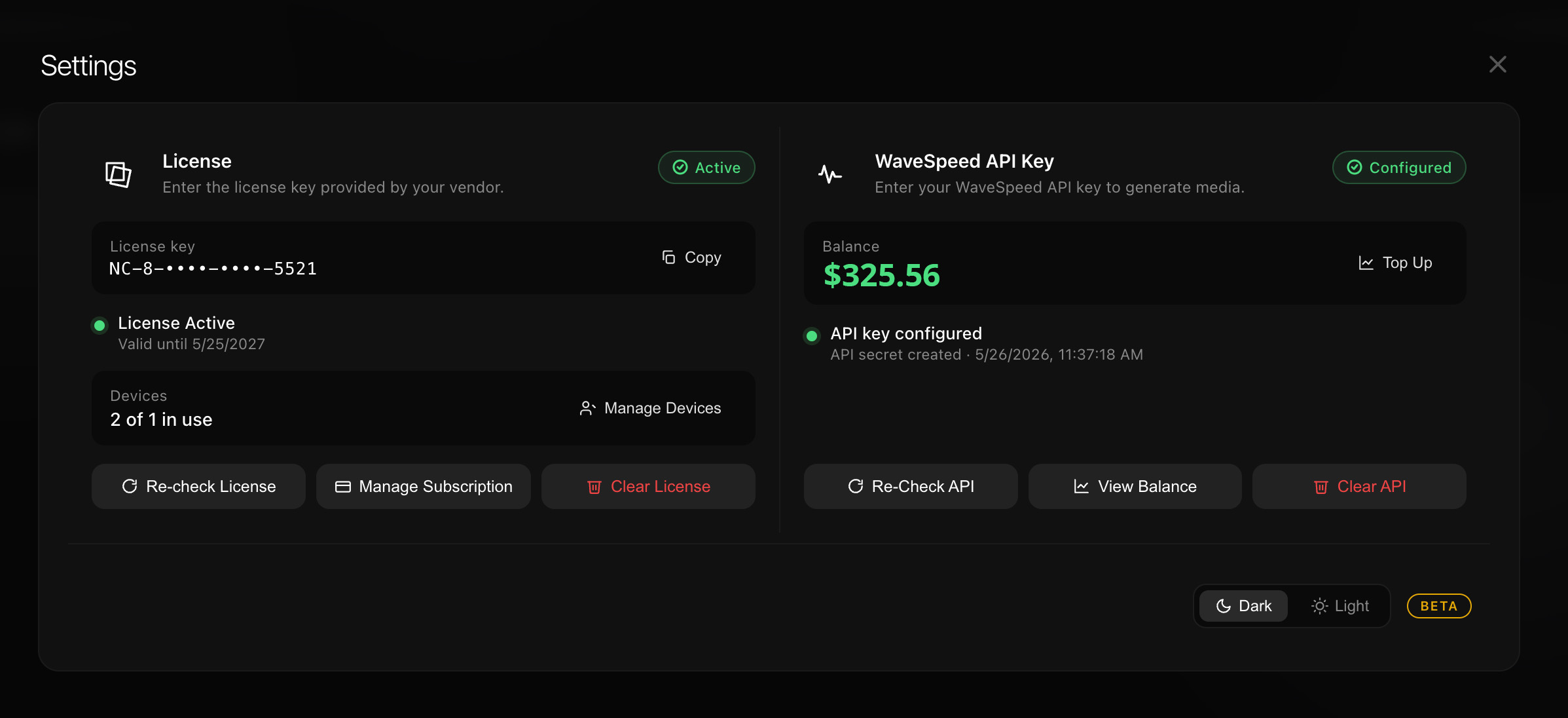
Once saved, the status switches to Configured and your WaveSpeed balance appears. Top up credits anytime via the Top Up button, Node Composer reads the balance live.
Your API key is stored locally and never transmitted to our servers.
04How does the free trial work?
The 14-day free trial requires registering a payment method through Polar, our Merchant of Record. No charge is applied until the trial ends. You can cancel at any time before the renewal date from the Polar customer portal, see the Terms of Sale.
05Can I use my license on more than one Mac?
Each subscription includes one active device authorization. To move Node Composer to a new Mac, open Settings → License → Manage Devices and deactivate the current machine. You can then activate the app on the new one. License sharing or resale is not permitted.
06How do I cancel or change my subscription?
Subscriptions are managed by Polar. You can cancel or change plan at any time:
- Open the activation email or any Polar receipt and click "Manage subscription".
- From there you can upgrade, downgrade, or cancel future renewals.
Cancellation prevents future charges but does not automatically generate a refund, see the refund policy.
07How do refunds work?
Refund requests are reviewed manually case by case. Write to info@node-composer.studio with your order ID and a brief explanation. We typically reply within 24 hours.
08I changed my email, how do I update it?
Reply to your Polar receipt or send a message to info@node-composer.studio from the old address with the new one in the body. We'll migrate the license and confirm.
09Where are my projects stored?
All your projects, including every generated image, video, and media asset, live in a single folder on your Mac:
~/Library/Application Support/node-composer/library
To open it quickly, in Finder press ⌘ ⇧ G and paste the path above. We recommend backing up this folder periodically, especially before reinstalling macOS or migrating to a new machine.
10The app says my license is invalid, what now?
- Make sure you're online, license validation requires connectivity.
- Sign out and sign back in (Settings → License → Sign out).
- Check your Polar dashboard: the subscription must show as "Active".
- If the issue persists, contact info@node-composer.studio with your order ID.
11The app won't open / quits on launch.
On Apple Silicon Macs, make sure Node Composer was moved into the Applications folder before launching, running it from the disk image can prevent it from starting. If the issue continues, try:
- Right-click the app → Open, then confirm.
- Send us the crash log shown by macOS, we'll diagnose it.
12Generations are stuck on "syncing".
If a generation stays in "syncing" state, recover it manually:
- Open the History panel (the arrow icon in the top-right corner of the editor).
- Find the stuck generation and click Recover, Node Composer will re-fetch the result from the provider.
- If Recover doesn't work, close and re-open the project, or quit and relaunch the app.
Generations that completed on the provider side will resync automatically once the connection is restored, no credits are wasted.
You can always verify every request on your WaveSpeed dashboard, completed generations are listed there regardless of the app state.
13Why am I seeing a "provider error" message?
This usually means one of the following:
- The API key is invalid, revoked, or has insufficient permissions.
- Your WaveSpeed balance is empty, top up to resume generation.
- The provider is temporarily rate-limiting your account; wait a few seconds and retry.
Open the node detail panel (right side of the editor) for the exact error text returned by the provider.
14Are AI generation credits included in my subscription?
No. Node Composer is the editor, generation credits are paid directly on the AI provider's platform. You bring your own API key and only pay for what you actually generate.
15Where is the community?
The official community lives on Reddit at r/nodecomposer. You'll find workflows from other creators, feature requests, and announcements from the team. Avoid sharing license keys or API credentials in public threads.
16How fast do you reply to support emails?
We aim to respond within 24 hours on business days. For licensing or billing issues, please include your order ID, it speeds things up significantly.
Talk to a human.
If your question isn't answered above, write to us directly or join the conversation with other Node Composer creators on Reddit.